🎥WAN 2.6 ON SEAART AI
"Imagine being able to create a professional video from a simple text description – that is what WAN 2.6 offers."
🌟 INTRODUCTION: THE FUTURE OF VIDEO CREATION
Wan 2.6 is a revolutionary multimodal artificial intelligence model, accessible through the SeaArt AI platform. It has the incredible ability to transform text descriptions (or static images) into high-quality short videos, with synchronized sound and realistic movements.
What does this mean for you? Basically, you describe a scene and the AI generates a clip of up to 15 seconds with perfectly aligned audio (voice, music, sound effects). Developed with cutting-edge technology, this model understands complex narrative sequences, reproducing cinematic details such as:
- Smooth camera movements
- Consistent characters
- Lip-sync synchronization in dialogues
All this without needing cameras, actors, or complex editing software. The AI does the "heavy lifting".
🎯 Who Is This Guide For?
The goal of Wan 2.6 is to democratize cinema-quality video creation.
- Content Creators: For social media, YouTube, TikTok.
- Marketing Professionals: Fast and impactful ads.
- Educators: Visual materials for classes.
- Enthusiasts: Anyone who wants to bring their ideas to life.
🚀 FIRST STEPS: ACCESS AND SETUP
Follow this roadmap to start your journey on SeaArt AI.
1. Create Your Free Account
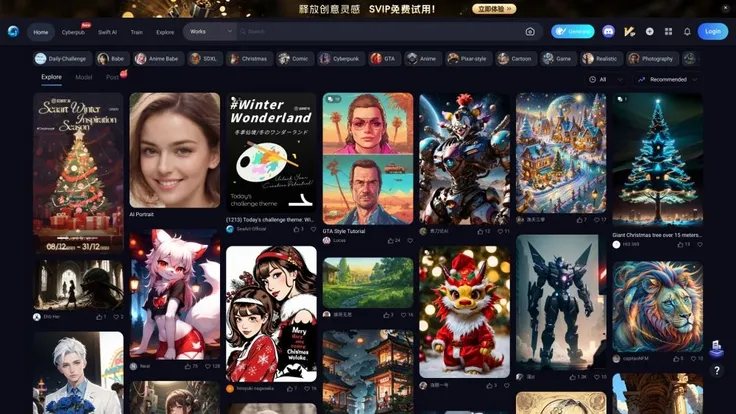
To use Wan 2.6, the first step is to access the SeaArt AI website () and create an account.
- Simple Sign-up: Use your email, Google, or Facebook.
- No Credit Card: No payment details are required for the basic account.
2. Understand Daily Credits (Stamina)
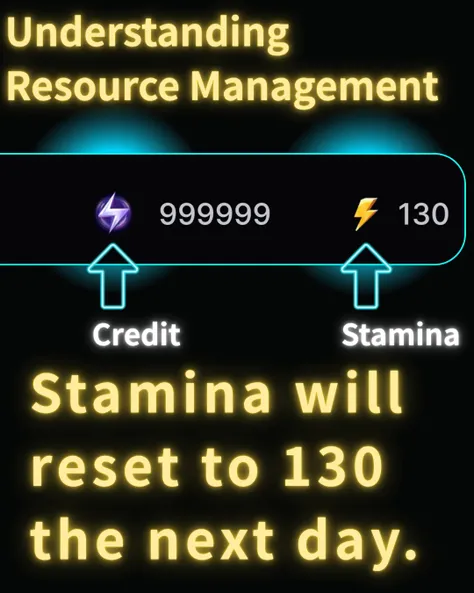
As soon as you register and log in, SeaArt automatically grants free daily credits (called Stamina).
- Daily Renewal: Free users receive about 150 Stamina points per day. This allows you to create several images or a few videos at no cost.
- How to earn more: Complete daily tasks (likes, community participation) or purchase a VIP plan. But to start, the free tier is sufficient!
3. Navigate to the Wan 2.6 Generator
On the SeaArt main page:
- Click on “Video Generation” or the models menu.
- Verify that the selected model is
Wan 2.6. It is crucial to select the correct version to access the 15-second features and advanced audio.
🛠️ STEP-BY-STEP TUTORIAL: CREATING YOUR VIDEO
Now let's get our hands dirty. The process is intuitive but requires attention to detail for incredible results.
Step 1: Choose Your Creation Mode
You have two main routes:
- Text-to-Video (T2V): You have an idea from scratch. Just describe the scene and the AI creates everything.
- Example: "A cyberpunk walking in neon rain."
- Image-to-Video (I2V): You have a photo or illustration you want to animate.
- How it works: Upload the image and the AI will add movement to it according to your description.
Pro Tip: There is also Video-to-Video (V2V) mode, where you use a reference video to guide generation. Useful for maintaining a character's movement consistency.
Step 2: Adjust Technical Settings
Before generating, define the scope of your project:
- Duration: Wan 2.6 supports clips of 5, 10, or 15 seconds.
- Recommendation: Start with 5 or 10 seconds for quick tests (costs fewer credits). Use 15 seconds for complete narratives.
- Resolution: 480p (SD), 720p (HD), or 1080p (Full HD).
- For professional quality, always go with 1080p, which runs at 24fps (cinema standard).
Step 3: Write the Perfect Prompt
In the text box, describe the scene. Be detailed!
- Mention the setting (lighting, environment).
- Describe the characters' actions.
- Specify the camera style (close-up, drone, slow motion).
I2V Example: If you uploaded a photo of a friend, the prompt could be: "My friend starts waving and smiling while the background transforms into a sunny beach."
Step 4: Generate and Wait
Click the Generate button.
- Processing is done in the cloud. It does not consume your PC.
- Wait time: A 5-6 second clip takes about 3 minutes. A 15-second video can take 5 to 8 minutes.
- Use this time to plan your next video!
Step 5: Download and Share
Your video will appear on the screen. Hit play! If you like it, click the Download icon to save as MP4. If it's not perfect, adjust the prompt and generate again. Remember: it is an iterative process.
🎓 Technical Glossary: Speaking the AI Language
To dominate Wan 2.6, it is useful to understand some terms you will see in the interface or community.
- Inference: The process of the AI "thinking". When you click generate, the model is performing an inference.
- Seed: A random number that defines the starting point of generation. If you use the same prompt and the same seed, the result will be identical. If you change the seed, the video changes. Useful for refining details without changing the entire composition.
- Sampling Steps: The number of steps the AI takes to refine the video. A higher number usually means more details but takes longer. SeaArt optimizes this automatically.
- CFG Scale (Guidance Scale): Determines how strictly the AI should obey your prompt. A high value (e.g., 15) forces the AI to follow every word but can generate distortions. A low value (e.g., 5) gives the AI creative freedom but may stray from the theme. Wan 2.6 generally works well with medium values (7-9).
- Multimodal: The ability to understand different types of input (text + image + video) simultaneously.
- Motion Bucket: Parameter (sometimes hidden or automatic) that defines "how much" movement there will be. If your video comes out too static, words like "high motion", "dynamic action" increase this value internally.
📽️ Masterclass: Camera Movements and Framing
The difference between an amateur and a professional video often lies in the camera. Wan 2.6 understands cinematic language. Use these terms in your prompts:
🎥 Camera Moves
- Pan: "Camera pans right" - The camera rotates horizontally on its axis. Great for revealing scenery.
- Tilt: "Camera tilts up" - The camera rotates vertically. Use to reveal the height of a building or a giant monster.
- Dolly In / Zoom In: "Slow dolly in" - The camera physically moves closer to the subject. Creates intimacy or tension.
- Tracking Shot: "Camera tracks the subject" - The camera follows the walking character, keeping them in the center.
- FPV (First Person View): "FPV drone shot diving into..." - Perspective in first person, flying fast. Excellent for action videos or extreme sports.
- Orbit / Arc Shot: "Camera orbits around the character" - The camera rotates 360 degrees around the subject. Highlights heroism or isolation.
📐 Shot Types
- Extreme Wide Shot: Shows the entire environment. The character is small. Prompt: "Extreme wide shot of a desert..."
- Medium Shot: From the waist up. Standard for dialogues. Prompt: "Medium shot of a woman talking..."
- Close-Up: The face fills the screen. Prompt: "Extreme close-up on the eye, detailed iris..."
- Low Angle: The camera looks from bottom to top. The character looks powerful.
- High Angle: The camera looks from top to bottom. The character looks vulnerable.
Tip: Combine them! "Low angle orbit shot around a samurai" creates an instant epic scene.
💡 MASTER TIPS FOR EPIC RESULTS (EXPANDED)
Here are the secrets to getting the most out of Wan 2.6 and leaving your friends jaw-dropped.
1. The "Mini-Script" Secret
Don't write simple prompts. Write narrative sequences. Wan 2.6 has a temporal "attention window" that allows chaining actions.
- Bad: "A person in a cafe."
- Good: "A person enters a busy cafeteria, the doors open with the bell ringing. They walk decisively to the counter. Cut to: them ordering a coffee from the smiling barista. Cut to: them sitting at a table near the window, watching the rain outside with a steaming cup in hand."
This activates the Multi-Shot feature of Wan 2.6, causing it to generate automatic camera cuts and tell a coherent mini-story in just 15 seconds.
2. Lighting Mastery
Lighting defines the "mood". Don't let the AI choose a standard "flat" light. Specify:
- Golden Hour: Soft orange light of sunset. Perfect for romance and travel.
- Blue Hour: The bluish light right before sunrise. Melancholic and cold.
- Cinematic Lighting / Rembrandt Lighting: Dramatic light with strong shadows, creating a light triangle on the face. Professional.
- Volumetric Lighting (God Rays): beams of light cutting through fog or dust. Magical and ethereal.
- Cyberpunk / Neon: Colorful artificial lights (pink, cyan). Futuristic.
3. Consistency with References (Deep Dive)
Using references in Wan 2.6 is not just "pasting a photo". It is about transfer of style and identity.
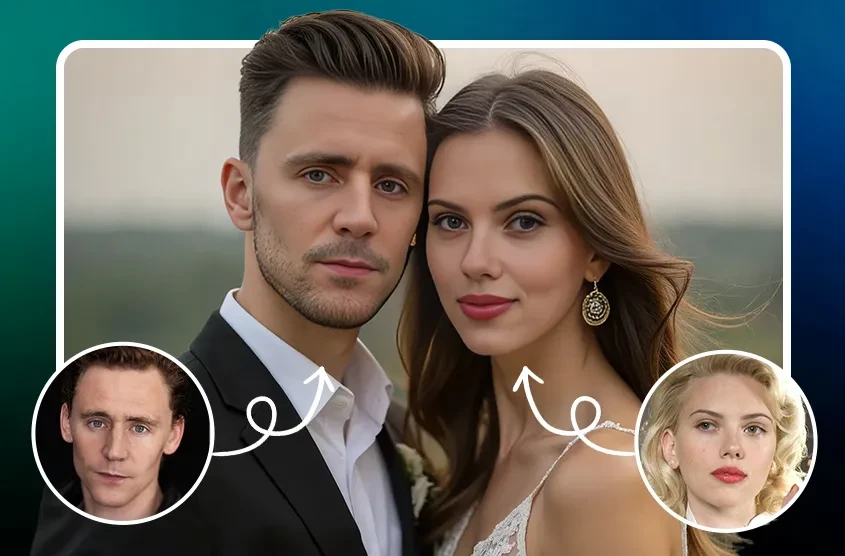
- Face Upload: When using a photo for face reference, ensure the photo is well-lit and frontal. Avoid photos with sunglasses or hats if you want the character to appear without them in the video.
- Pose Upload: You can use a reference video of yourself doing a movement (e.g., kicking a ball) and ask the AI to transform you into a national team player. The AI will use the motion skeleton of your video.
- Double Reference: Try placing a Style reference (e.g., Van Gogh oil painting) in slot 1 and a Character reference (your friend) in slot 2. The result will be your friend painted by Van Gogh in motion!
4. Master Audio and Lip-Sync
Wan 2.6 generates sound automatically, but the magic is in Lip-Sync.
- Clear Dialogues: To work well, use quotation marks in the prompt. She looks at the camera and says: "This is the future."
- Emotion in Voice: Add voice descriptors before the speech. With a terrified shaky voice, he whispers: "Don't open the door." The AI will try to modulate the generated audio to tremble.
- Sound Design: Describe the detailed sound environment. "Busy street noise, honking cars, distant police siren." This fills the video and makes it immersive.
🐛 Advanced Troubleshooting
Even the best AI fails. Here is how to fix common errors:
The "Shapeshifting" Effect
Problem: The character changes clothes or face in the middle of the video. Solution:
- Increase the reference strength (if using I2V).
- In the prompt, reinforce the main characteristics at the beginning AND at the end of the sentence. "A man in a red jacket walks... the man in the red jacket stops."
- Reduce the CFG Scale slightly (if available in advanced options).
Extra or Missing Limbs
Problem: Hands with 6 fingers or disappearing legs. Solution:
- Avoid prompts involving complex manual interactions (playing piano, holding small objects) if not essential. Hands are the weak point of generative AIs.
- Use framings that hide the hands (Medium Shot) if they are not the focus.
- Use "Negative Prompts" if SeaArt allows: "mutated hands, extra fingers, bad anatomy, missing limbs".
Illegible Text in Video
Problem: You asked for a sign reading "STOP" and the AI generated alien hieroglyphs. Solution:
- Video models still struggle to generate legible text within the scene.
- The best solution is to generate the video without the text and add the text later in an editor like CapCut or Premiere, using tracking to paste the text on the wall/sign. It looks much more professional.
Ghosting Motion
Problem: The character's trail stays on the screen. Solution:
- This usually occurs in very fast movements with low frame rate. Try generating in 1080p (which forces higher quality) or smoothing the movement in the prompt ("Slow smooth motion" instead of "Lightning fast dash").
🎨 PROMPT GALLERY: INSPIRATION AND EXAMPLES
Copy, paste, and adapt these prompts to start off on the right foot.
🎭 Film Noir (Suspense)
"A detective in a trench coat walks down a dark, rainy street at night, lights a cigarette. The camera zooms in on his thoughtful face while a bar neon lights up the scene. Sound of rain and soft jazz in the background."
Expected Result: Somber atmosphere, realistic reflections on wet ground, smooth transition between wide shot and close-up.
📱 Tech Commercial (Product)
""In a dark studio, a smartphone floats in the air. The camera alternates between closeup on lens details and wide shots. Energetic electronic music.
Expected Result: TV commercial style video, impeccable 3D, dynamic lights reflecting on the device.
⚔️ Epic Fantasy (Action)
"A medieval female warrior in armor runs across a battlefield in slow motion. Dragons fly over the sky. She raises her shining sword and shouts: 'For Avalon!'. Intense orchestral music."
Expected Result: High production scene, special effects of dragons, perfect lip-sync on the warrior's shout.
❓ FAQ (Frequently Asked Questions)
Is Wan 2.6 really free?
Yes! Through SeaArt AI, you receive credits (Stamina) daily. You can create videos every day without paying anything. Paid plans exist only if you need industrial volume of generations.
Do I need a NASA Gamer PC?
No! All processing is in the cloud. You can use an old laptop, a tablet, or even a mobile phone. If it runs a web browser, it runs Wan 2.6.
Can I use the videos commercially?
Generally, yes. The generated videos are yours. SeaArt allows commercial use (YouTube, ads, monetization). Attention: If you use third-party images (e.g., Mickey Mouse) as a base, then the copyright of the original image applies.
What to do if the video comes out weird?
It happens! It's AI.
- Generate again: Randomness can work in your favor on the second try.
- Improve the Prompt: Be more specific. "Detailed face", "4k", "realistic".
- Use References: Helps the AI "hold" the shape of objects/people.
Does it speak only english (or other languages)?
Yes! If you write the dialogue in english in the prompt, the AI generates the voice in that language with natural accent and synchronizes the character's mouth.
__________________________________________________________________________________
This guide was compiled based on official documentation and practical tests of Wan 2.6 (2025-2026). Now it's up to you: go create something amazing! 🎬